 How to Make Beats Using Xpand!2: A Complete Guide for Hip-Hop & R&B Producers
When producers talk about affordable virtual instruments, Xpand!2 is almost always part of the conversation. Although it has been around for years, this lightweight workstation plugin continues to be one of the fastest ways to create professional-sounding beats.
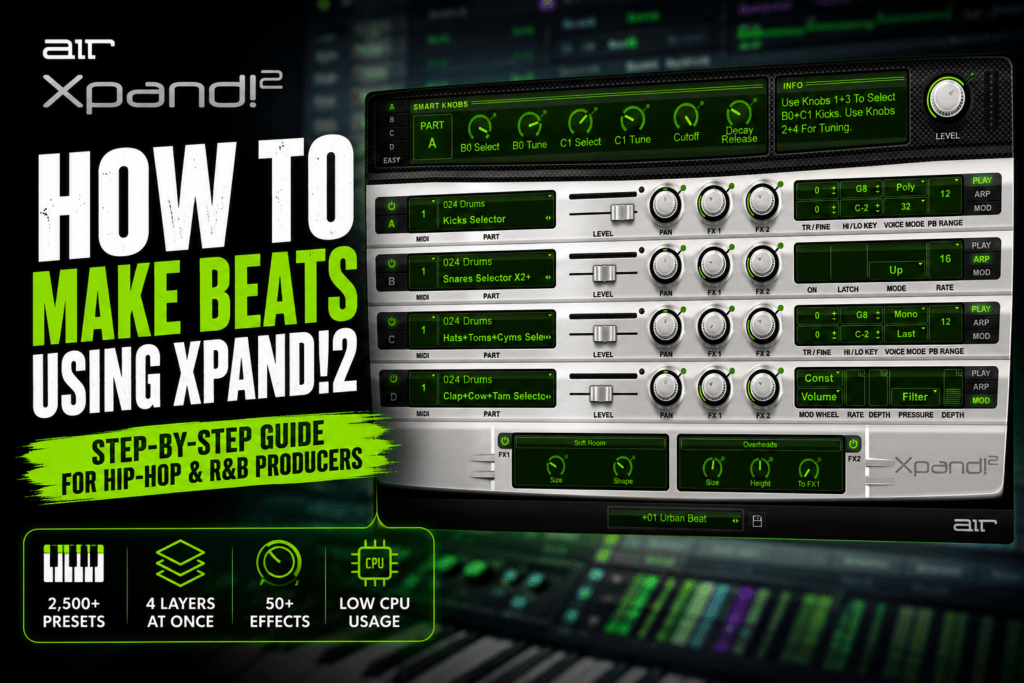
With over 2,500 presets, four-layer sound design, built-in effects, and an easy-to-use interface, Xpand!2 gives producers everything they need to sketch ideas quickly without getting lost in complicated sound design.
Whether you’re producing hip-hop, trap, R&B, pop, or lo-fi, this guide will show you how to make complete beats using Xpand!2 from start to finish.
Why Xpand!2 Is Great for Beat Making
Many modern plugins focus on creating one perfect sound.
Xpand!2 takes a different approach.
Instead of spending 20 minutes building a synth patch from scratch, you simply browse thousands of professionally designed presets and start creating music immediately.
Its biggest advantages include:
- Over 2,500 instrument presets
- Four instruments layered in one patch
- Fast preset browsing
- Very low CPU usage
- Built-in effects
- Works well in any DAW
For producers who want to finish more beats, speed is one of Xpand! 2’s biggest strengths.
Step 1: Start With a Chord Progression
Every great beat begins with harmony.
Open Xpand!2 and browse categories like:
- Soft Pianos
- Electric Pianos
- Pads
- Bells
- Synth Keys
These sounds work especially well for emotional hip-hop and R&B productions.
Try a simple four-chord progression like:
Dm7 – Bbmaj7 – Fmaj7 – C
Or
Em7 – Cmaj7 – Gmaj7 – D
Don’t overcomplicate things.
Focus on creating a mood.
Step 2: Layer Sounds for a Bigger Mix
One of Xpand!2’s best features is its four-part architecture.
Instead of using one instrument, combine several.
For example:
Part A
- Grand Piano
Part B
- Warm Pad
Part C
- Bell
Part D
- Soft Choir
Now your chords sound wide, full, and professional.
Small adjustments to volume and panning can make each layer stand out without overwhelming the mix.
Step 3: Create a Catchy Melody
Once the chords are finished, it’s time to write the lead.
Great preset categories include:
- Bells
- Plucks
- Synth Leads
- Flutes
- Electric Keys
Keep your melody simple.
Most memorable hip-hop melodies use only a handful of notes repeated with slight variations.
Try leaving space between phrases rather than filling every measure with notes.
Step 4: Add a Bass
Xpand!2 includes several bass categories, including:
- Analog Bass
- Synth Bass
- Electric Bass
- Deep Bass
Choose one that complements your drums.
For trap music, use a simple bass pattern that follows the root notes of your chord progression.
If you’re using an 808 plugin, Xpand!2 can still provide an additional midrange bass layer to help the low end translate better on smaller speakers.
Step 5: Build Your Drum Pattern
While Xpand!2 includes drum kits, many producers pair it with dedicated drum samples for maximum impact.
A basic trap drum pattern might include:
- Kick
- Snare on beats 3 and 7
- Closed hi-hats with rolls
- Open hat before transitions
- Percussion for groove
The melodic foundation created with Xpand!2 leaves plenty of room for hard-hitting drums.
Step 6: Use Built-In Effects
Xpand!2 includes more than 50 onboard effects.
Experiment with:
- Reverb
- Delay
- Chorus
- Distortion
- EQ
- Filters
- Phaser
Adding a touch of reverb to a piano or bell can instantly make it feel larger and more emotional.
Subtle chorus effects also work well on pads and electric pianos.
Step 7: Automate Filter Sweeps
To keep your beat interesting, automate Xpand!2’s filter controls during transitions.
For example:
- Lower the cutoff during verses.
- Open the filter during the hook.
- Add extra reverb before the chorus.
- Remove one instrument during the bridge.
These small changes create movement without requiring additional plugins.
Step 8: Arrange the Beat
Once your main loop is complete, turn it into a full arrangement.
A simple structure might look like this:
Intro (8 bars)
Start with only the pad and piano.
Verse (16 bars)
Bring in the drums and bass.
Hook (8 bars)
Add all four Xpand!2 layers for maximum energy.
Verse 2 (16 bars)
Remove one layer to create variation.
Bridge (8 bars)
Use only the pad and bells.
Final Hook (16 bars)
Bring everything back together.
This keeps listeners engaged throughout the track.
Best Xpand!2 Sounds for Beat Makers
If you’re not sure where to begin, these categories are worth exploring:
Pianos
Perfect for emotional trap and R&B.
Bells
Pads
Great for atmosphere and intros.
Electric Pianos
Excellent for neo-soul and chill hip-hop.
Strings
Useful for cinematic intros and dramatic hooks.
Choirs
Perfect for adding depth behind chords.
Synth Leads
Great for catchy hooks and top melodies.
Tips for Better Beats With Xpand!2
Don’t rely on a single preset. Layer multiple sounds to create a richer, more unique tone.
Use the built-in effects sparingly. A little reverb or chorus can enhance a sound without washing it out.
Adjust velocity while recording MIDI. Dynamic performances feel more natural than notes played at the same volume.
Experiment with panning. Placing layers slightly left and right can create a wider stereo image.
Most importantly, spend less time browsing presets and more time finishing songs. Xpand!2 is designed to help you move quickly from inspiration to a completed beat.
Final Thoughts
Xpand!2 may not have the flashiest interface or the deepest synthesis engine, but it remains one of the fastest and most inspiring virtual instruments for beat makers.
Its huge preset library, four-part layering system, lightweight CPU usage, and straightforward workflow make it an excellent choice for producers who want to focus on creating music instead of getting lost in endless sound design.
Whether you’re producing emotional R&B, hard-hitting trap, modern hip-hop, or pop instrumentals, Xpand!2 provides more than enough sounds to build complete, professional-quality beats.
If your goal is to finish more music and spend less time tweaking plugins, Xpand!2 deserves a permanent spot in your production toolkit.